
Text message (SMS) verification
A plain-language guide to using text-message codes to sign in to SIMPL.
Multi-factor authentication (MFA) is an extra step when you sign in to SIMPL. After you type your email and password, SIMPL asks for a short code sent to your phone by text message. The code is only good for a few minutes, so even if someone learns your password, they still can't get into your account without your phone.
This page walks you through:
- What you'll need
- Setting up text-message verification
- Signing in once it's set up
- Switching methods or turning it off
- About the text messages SIMPL sends
- Troubleshooting
Prefer to use an authenticator app instead? See Authenticator app verification.
What you'll need
- A SIMPL account that you can already sign in to with email and password.
- A mobile phone that can receive SMS text messages.
- Text-message verification has to be allowed for your program. If you don't see "SMS text message verification" as an option when you start MFA setup, your program is configured to use authenticator-app verification only — see Authenticator app verification, or email help@simpl.org.
Setting up text-message verification
- Sign in at https://auth.simpl.org/sign-in with your SIMPL email and password. If your program is starting to require MFA, you'll be taken straight to the setup page — that's normal.
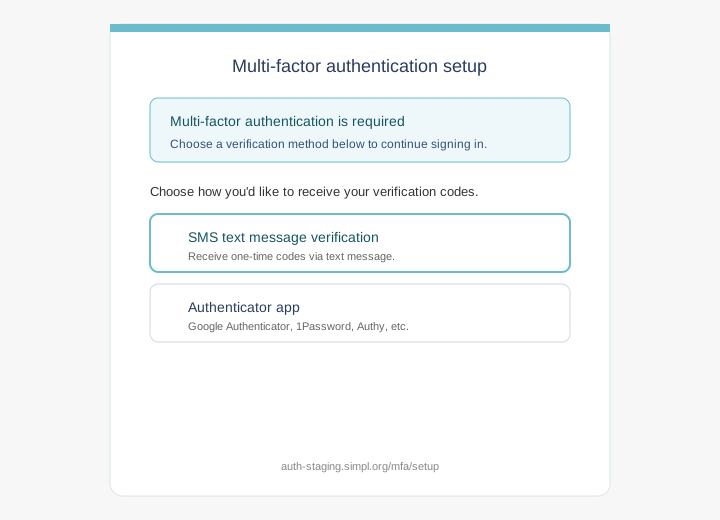
- Go to https://auth.simpl.org/mfa/setup and tap SMS text message verification.
-
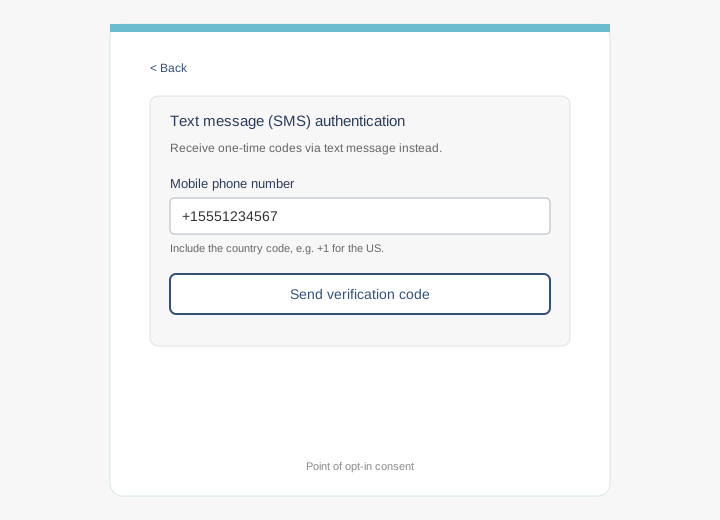
Type your mobile phone number, including the country code (for example,
+1for the US followed by your ten-digit number — so a phone number like(555) 123-4567becomes+15551234567). - Tap Send verification code. SIMPL will send a short code to that phone, usually within a few seconds.
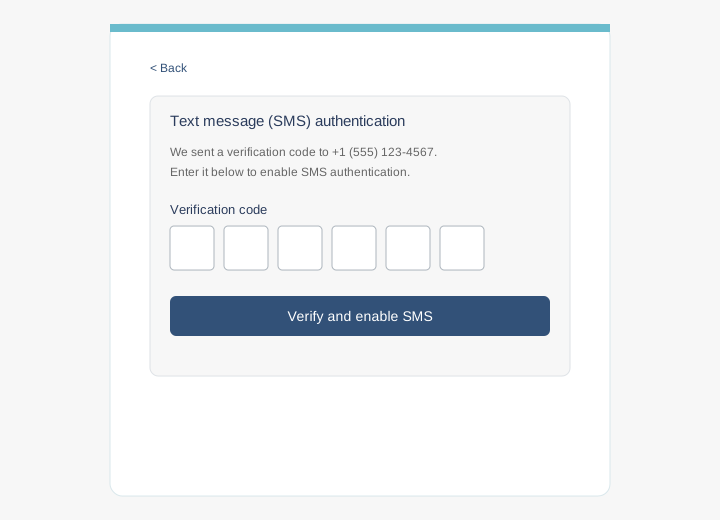
- Type the code from the text message into the boxes on screen and tap Verify and enable SMS. Text-message verification is only turned on after the code is accepted.
- If the code doesn't arrive within a minute or two, tap Resend it.
Tip: If your program also allows authenticator-app codes, consider adding an authenticator app as a backup once SMS is working. Authenticator codes don't depend on cell-signal or carrier delivery, so they're a useful fallback. You can add a second method from the same MFA setup page after enrolling.
What the screens look like
These screens only appear after you're signed in.
Signing in once it's set up
From now on, when you sign in to SIMPL:
- Enter your email and password as usual.
- SIMPL sends a verification code to your phone by text message.
- Type the code into the boxes on screen. The code is only good for a few minutes; if it expires, you can request a new one.
Switching methods or turning it off
Sign in and go back to https://auth.simpl.org/mfa/setup. From there you can:
- Add an authenticator app as a second method (recommended, even if you keep SMS).
- Disable text-message verification entirely. You can re-enroll any time.
If your program requires MFA, you can't turn off MFA completely — but you can switch from text-message codes to an authenticator app, or reset MFA and enroll again from scratch.
About the text messages SIMPL sends
A typical verification text from SIMPL looks like this:
Your verification code is 123456.
- Text messages are sent by Procedural Learning and Safety Collaborative, Inc. (dba SIMPL — Society for Improving Medical Professional Learning).
- The only messages SIMPL sends on this channel are one-time verification codes for signing in or confirming your phone number. SIMPL does not use SMS for marketing.
- Message frequency varies — typically one message per sign-in attempt or enrollment verification.
- Message and data rates may apply, depending on your mobile carrier plan.
- Phone numbers you provide for MFA are used only to deliver verification codes and are not sold to third parties. See our privacy policy.
- To stop receiving verification texts, turn off SMS verification from the MFA setup page (see above), or contact help@simpl.org.
Troubleshooting
- The code never arrived.
-
Tap Resend it on the verification screen. Check that
your phone has signal and that the number you entered is correct
(don't forget the
+1country code). If it still doesn't arrive, email help@simpl.org. - I changed my phone number.
- Sign in and go to https://auth.simpl.org/mfa/setup. Disable SMS, then re-enroll with your new number. If you can no longer sign in at all (e.g., the old number was lost), email help@simpl.org and we can reset MFA on your account.
- I lost my phone.
- Email help@simpl.org from the email address on your SIMPL account. We can reset MFA so you can enroll a new phone the next time you sign in.
- I'm getting a "limit exceeded" or "please wait" message.
- Wait a minute and try again. Sending too many codes in a short window triggers a temporary cooldown to prevent abuse.
Support
For help with MFA, SMS enrollment, or any SIMPL-related issue, visit SIMPL Support or email help@simpl.org.
SIMPL is operated by Procedural Learning and Safety Collaborative, Inc., a 501(c)(3) nonprofit research collaborative. This is the same contact channel listed on simpl.org/simpl-support.