
Authenticator app verification
A plain-language guide to using an authenticator app to sign in to SIMPL.
Multi-factor authentication (MFA) is an extra step when you sign in to SIMPL. After you type your email and password, SIMPL asks for a short 6-digit code from an authenticator app on your phone. The code rolls over every 30 seconds, so even if someone learns your password, they still can't get into your account without your phone.
Authenticator-app codes don't depend on text-message delivery or a cell signal, so they're the recommended way to use MFA on SIMPL.
This page walks you through:
- What you'll need
- Choosing an authenticator app
- Setting up authenticator verification
- Signing in once it's set up
- Switching methods or turning it off
- Troubleshooting (lost phone, new device, etc.)
Prefer (or need) text-message codes instead? See Text message (SMS) verification.
What you'll need
- A SIMPL account that you can already sign in to with email and password.
- A smartphone with an authenticator app installed (free — see below).
Choosing an authenticator app
SIMPL works with any standard authenticator app. If you already use one for another account (your bank, work email, etc.), keep using it — you'll just add SIMPL as a new entry. If not, here are common free choices:
- Google Authenticator (Android, iPhone)
- Microsoft Authenticator
- Authy (offers cloud backup)
- Duo Mobile
- 1Password (if you already use it as your password manager)
- iPhone Passwords (built in to iPhone, iOS 15+)
- Bitwarden
Not sure which to pick? Google Authenticator and Microsoft Authenticator are both free, widely used, and straightforward. If you want your authenticator codes to be easy to move to a new phone later, pick one with cloud backup (Authy, 1Password, Microsoft Authenticator with backup turned on, iPhone Passwords via iCloud Keychain).
Setting up authenticator verification
How setup works depends on which device you're using. Pick the section that matches your situation.
On a desktop or laptop computer
- Sign in at https://auth.simpl.org/sign-in with your SIMPL email and password.
- Go to https://auth.simpl.org/mfa/setup. (If your program is starting to require MFA, you'll be taken straight to this page after sign-in.)
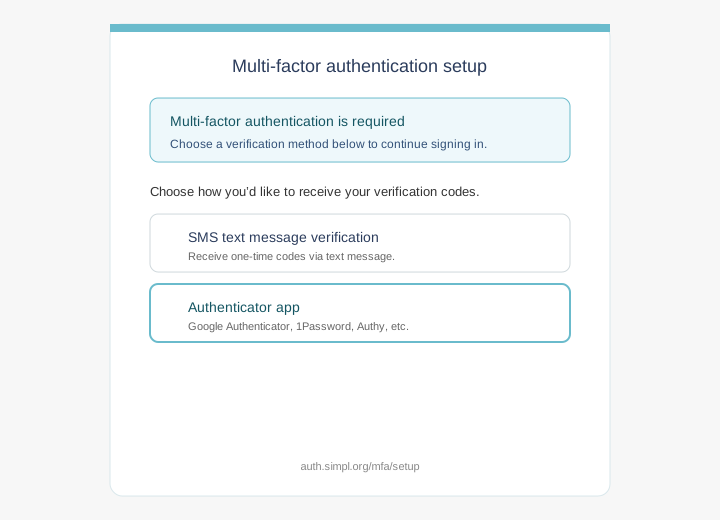
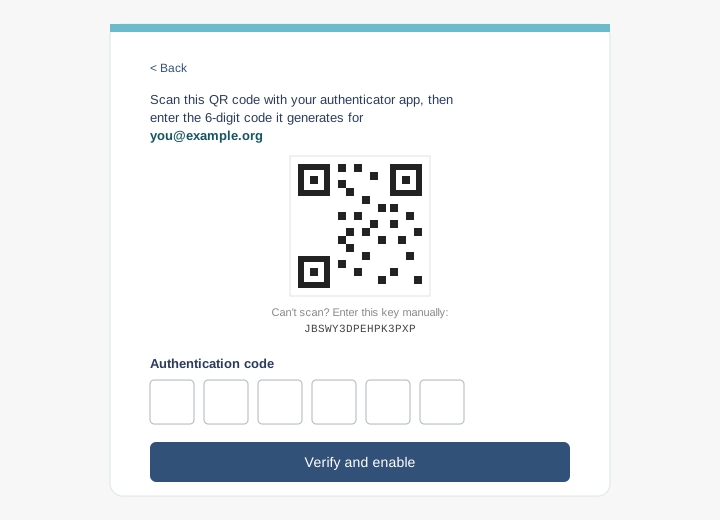
- If you see a choice of methods, tap Authenticator app. A QR code appears on screen.
- On your phone, open your authenticator app and tap its "+" or "Scan QR code" button to add a new account.
- Point your phone's camera at the QR code on your computer screen. Your authenticator will add a new entry called something like "SIMPL — your-email" and immediately start showing a 6-digit code that changes every 30 seconds.
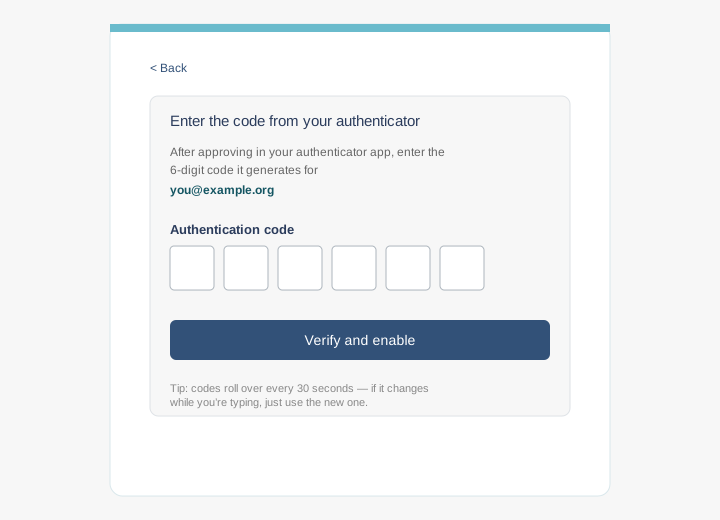
- Back on your computer, type the current 6-digit code into the boxes and click Verify and enable. (If the code happens to change while you're typing, just use the new one.)
Can't get the QR to scan (camera won't focus, etc.)? Click Can't scan? below the QR. SIMPL will show a short text key (called a "secret"). Type it into your authenticator app's manual-entry screen instead.
On your phone (the SIMPL mobile app or a phone browser)
- Sign in.
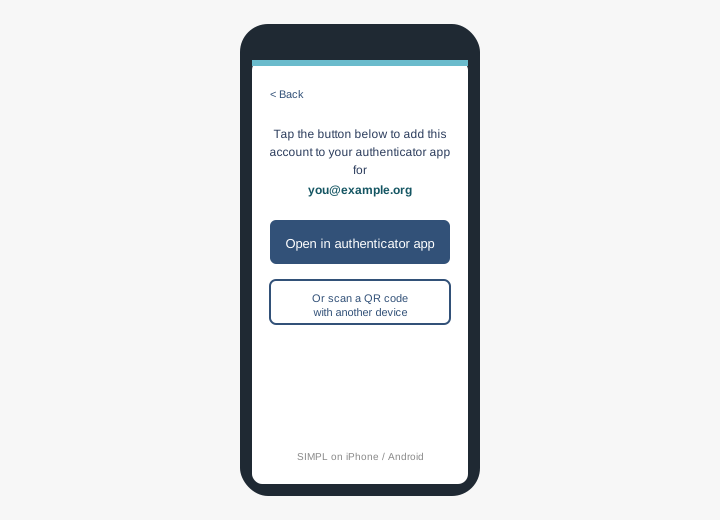
- On the MFA setup page, tap Open in authenticator app. This hands a one-time setup link straight to your authenticator app.
- Your authenticator app opens and asks you to confirm adding SIMPL. Tap to accept.
- Switch back to SIMPL and type the current 6-digit code from your authenticator into the boxes. Tap Verify and enable.
If tapping Open in authenticator app doesn't do anything, you probably don't have an authenticator app installed yet. Install one from the App Store or Play Store, then come back and try again. SIMPL will also offer a Scan a QR code with another device option as a fallback if you already have the QR up on a second device.
What the screens look like
These screens only appear after you're signed in.
Signing in once it's set up
From now on, when you sign in to SIMPL:
- Enter your email and password as usual.
- Open your authenticator app, find the SIMPL entry, and type the current 6-digit code.
- That's it — you're in. Codes refresh every 30 seconds, so if it changes mid-typing, just use the new one.
Switching methods or turning it off
Sign in and go to https://auth.simpl.org/mfa/setup. From there you can:
- Add text-message verification as a backup method, if your program allows it. (Authenticator codes are still the preferred sign-in method when both are available.)
- Disable authenticator verification entirely. You can re-enroll any time.
- Reset authenticator setup. Use this if you got a new phone or set up the wrong account in your authenticator. Resetting removes the current authenticator entry from SIMPL so you can enroll a fresh one on the next sign-in.
If your program requires MFA, you can't turn off MFA completely — but you can switch to text-message codes (if allowed), or reset and enroll again from scratch.
Troubleshooting
- The code SIMPL is asking for doesn't match what my app shows.
- Authenticator codes are based on the time on your phone. If your phone's clock is more than about 30 seconds off, the codes will be rejected. Turn on automatic time / network time in your phone's settings and try again.
- I got a new phone and didn't migrate my authenticator.
- Email help@simpl.org from the email address on your SIMPL account. We'll reset MFA so you can set up your new phone the next time you sign in.
- I deleted the SIMPL entry from my authenticator by mistake.
- Same thing — email help@simpl.org and we'll reset MFA so you can re-enroll.
- "Open in authenticator app" does nothing on my phone.
- You probably don't have an authenticator app installed yet. Install one (see above) and try again. If you already have one installed but the button still does nothing, use the Scan a QR code with another device fallback and follow the desktop instructions above using a second device.
- I'm enrolling for the first time and want to be extra careful.
- Once you finish enrolling, sign out and sign back in once on the same device while you still have computer / phone access. That confirms the authenticator is working before you actually need it.
Support
For help with MFA, authenticator setup, or any SIMPL-related issue, visit SIMPL Support or email help@simpl.org.
SIMPL is operated by Procedural Learning and Safety Collaborative, Inc., a 501(c)(3) nonprofit research collaborative. This is the same contact channel listed on simpl.org/simpl-support.